0x00 前置
最近终于搞好了自己的个人博客,顺便就写一篇这方面的教程。
材料:一台云服务器(我用的腾讯云),一个域名,XShell.
顺便一提,我服务器的系统是 Ubuntu14.04 /*原本这篇文章是用 HTML 写的,后来给博客加上了 MD 编辑器后这篇的排版就炸了,现在那个代码高亮的模块也弄得我很迷,麻烦各位观众老爷将就着看吧*/
0x10 配置数据库
0x11 安装 mysql
首先用 XShell,输入外网 IP,用户名和密码连到服务器,在安装之前,最好更新下软件源列表。更新命令如下:
$ sudo apt-get update更新软件源之后,我们就可以接着安装mysql服务器端和客户端了。安装的命令如下:
$ sudo apt-get install mysql-server mysql-client在安装的过程中有两次交互,分别是提示你是否安装,以及安装 mysql 时输入用户密码。 第一次输入 y,然后回车表示同意安装 mysql 数据库,第二次交互的时候,输入 root 账户密码,并且要在输入一次验证是否和前面输入是否一致。
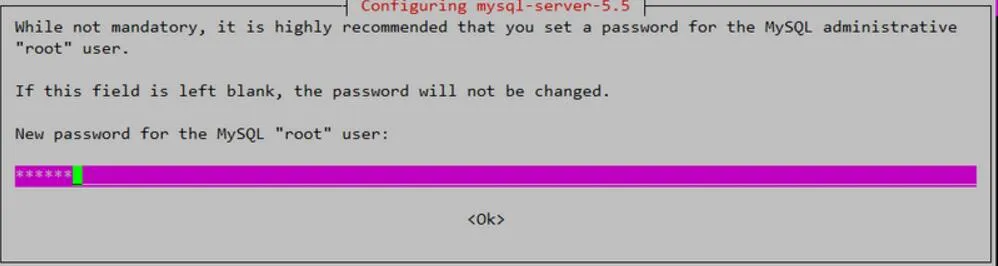
安装完成后,MySQL 服务器会自动启动。
mysql 数据库安装后的根目录在:/etc/mysql/
0x12 通过命令行客户端访问 MySQL
我们检查 MySQL 服务器程序
#检查MySQL服务器系统进程
$ ps -aux|grep mysql
mysql  837   0.0 6.1 891864 62856 ?     Ssl Apr07 0:27 /usr/sbin/mysqld
ubuntu 26813 0.0 0.0 10460  928   pts/0 S+  16:35 0:00 grep --color=auto mysql

#检查MySQL服务器占用端口
$ netstat -nlt|grep 3306
tcp        0      0 127.0.0.1:3306          0.0.0.0:*               LISTEN

#通过启动命令检查MySQL服务器状态
$ sudo /etc/init.d/mysql status
Copyright (c) 2000, 2016, Oracle and/or its affiliates. All rights reserved.

Oracle is a registered trademark of Oracle Corporation and/or its
affiliates. Other names may be trademarks of their respective
owners.

Server version          5.5.54-0ubuntu0.14.04.1
Protocol version        10
Connection              Localhost via UNIX socket
UNIX socket             /var/run/mysqld/mysqld.sock
Uptime:                 1 day 1 hour 41 min 0 sec

Threads: 1 Questions: 74537 Slow queries: 0 Opens: 62 Flush tables: 1 Open tables: 55 Queries per second avg: 0.806

#通过系统服务命令检查MySQL服务器状态
$ service mysql status
mysql start/running, process 837
使用用户名和密码,登陆服务器
$ mysql -uroot -p
Enter password:
Welcome to the MySQL monitor. Commands end with ; or g.
Your MySQL connection id is 3543
Server version: 5.5.54-0ubuntu0.14.04.1 (Ubuntu)

Copyright (c) 2000, 2016, Oracle and/or its affiliates. All rights reserved.

Oracle is a registered trademark of Oracle Corporation and/or its
affiliates. Other names may be trademarks of their respective
owners.

Type 'help;' or 'h' for help. Type 'c' to clear the current input statement.

mysql>
MySQL 的一些简单的命令操作。
#查看所有的数据库
mysql> show databases;
+--------------------+
| Database           |
+--------------------+
| information_schema |
| kira               |
| mysql              |
| performance_schema |
+--------------------+
4 rows in set (0.00 sec)

#切换到information_schema库
mysql> use information_schema;
Reading table information for completion of table and column names
You can turn off this feature to get a quicker startup with -A

Database changed
#查看information_schema库中所有的表
mysql> show tables;
+---------------------------------------+
| Tables_in_information_schema          |
+---------------------------------------+
| CHARACTER_SETS                        |
| COLLATIONS                            |
| COLLATION_CHARACTER_SET_APPLICABILITY |
| COLUMNS                               |
| COLUMN_PRIVILEGES                     |
| ENGINES                               |
| EVENTS                                |
| FILES                                 |
| GLOBAL_STATUS                         |
| GLOBAL_VARIABLES                      |
| KEY_COLUMN_USAGE                      |
| PARAMETERS                            |
| PARTITIONS                            |
| PLUGINS                               |
| PROCESSLIST                           |
| PROFILING                             |
| REFERENTIAL_CONSTRAINTS               |
| ROUTINES                              |
| SCHEMATA                              |
| SCHEMA_PRIVILEGES                     |
| SESSION_STATUS                        |
| SESSION_VARIABLES                     |
| STATISTICS                            |
| TABLES                                |
| TABLESPACES                           |
| TABLE_CONSTRAINTS                     |
| TABLE_PRIVILEGES                      |
| TRIGGERS                              |
| USER_PRIVILEGES                       |
| VIEWS                                 |
| INNODB_BUFFER_PAGE                    |
| INNODB_TRX                            |
| INNODB_BUFFER_POOL_STATS              |
| INNODB_LOCK_WAITS                     |
| INNODB_CMPMEM                         |
| INNODB_CMP                            |
| INNODB_LOCKS                          |
| INNODB_CMPMEM_RESET                   |
| INNODB_CMP_RESET                      |
| INNODB_BUFFER_PAGE_LRU                |
+---------------------------------------+
40 rows in set (0.00 sec)

# 查看数据库的字符集编码
mysql> show variables like '%char%';
+--------------------------+----------------------------+
| Variable_name            | Value                      |
+--------------------------+----------------------------+
| character_set_client     | utf8                       |
| character_set_connection | utf8                       |
| character_set_database   | utf8                       |
| character_set_filesystem | binary                     |
| character_set_results    | utf8                       |
| character_set_server     | latin1                     |
| character_set_system     | utf8                       |
| character_sets_dir       | /usr/share/mysql/charsets/ |
+--------------------------+----------------------------+
8 rows in set (0.00 sec)
接下来,我需要做一些配置,让 MySQL 符合基本的开发要求。
0x13 修改 MySQL 服务器的配置
默认情况下,MySQL 的字符集是 latin1,因此在存储中文的时候,会出现乱码的情况,所以我们需要把字符集统一改成 UTF-8。
用 vim 打开 MySQL 服务器的配置文件 my.cnf
$ sudo vim /etc/mysql/my.cnf

#在[client]标签下,增加客户端的字符编码
[client]
default-character-set=utf8

#在[mysqld]标签下,增加服务器端的字符编码
[mysqld]
character-set-server=utf8
collation-server=utf8_general_ci
给没有用过 vim 的小伙伴留几条常用命令
| 命令 | 功能 |
|---|---|
i |
进入insert模式 |
o |
新开一行 |
esc |
关闭insert模式 |
shift+: |
进入命令行模式 |
在命令行模式下
| 命令 | 功能 |
|---|---|
:w |
保存 |
:wq |
保存并关闭 |
:q |
关闭(已保存) |
:q! |
强制关闭 |
默认情况下,MySQL 服务器不允许远程访问,只允许本机访问,所以我们需要设置打开远程访问的功能。
用 vim 打开 MySQL 服务器的配置文件 my.cnf
$ sudo vim /etc/mysql/my.cnf

#注释bind-address
#bind-address            = 127.0.0.1
修改后,重启MySQL服务器。
$ sudo /etc/init.d/mysql restart重新登陆服务器
$ mysql -uroot -p
Enter password:

Welcome to the MySQL monitor. Commands end with ; or g.
Your MySQL connection id is 3543
Server version: 5.5.54-0ubuntu0.14.04.1 (Ubuntu)

Copyright (c) 2000, 2016, Oracle and/or its affiliates. All rights reserved.

Oracle is a registered trademark of Oracle Corporation and/or its
affiliates. Other names may be trademarks of their respective
owners.

Type 'help;' or 'h' for help. Type 'c' to clear the current input statement.

mysql>
检查 MySQL 的网络监听端口
#检查MySQL服务器占用端口
$ netstat -nlt|grep 3306
  tcp        0      0 0.0.0.0:3306            0.0.0.0:*               LISTEN
我们看到从之间的网络监听从 127.0.0.1:3306 变成 0 0.0.0.0:3306,表示 MySQL 已经允许远程登陆访问。
通过 root 账号远程访问,是非常不安全的操作,因此我们下一步,将新建一个数据库,再新建一个用户进行远程访问。
0x14 新建数据库并设置访问账号
通过 root 账号登陆 MySQL 服务器
$ mysql -uroot -p
Enter password:

Welcome to the MySQL monitor. Commands end with ; or g.
Your MySQL connection id is 3543
Server version: 5.5.54-0ubuntu0.14.04.1 (Ubuntu)

Copyright (c) 2000, 2016, Oracle and/or its affiliates. All rights reserved.

Oracle is a registered trademark of Oracle Corporation and/or its
affiliates. Other names may be trademarks of their respective
owners.

Type 'help;' or 'h' for help. Type 'c' to clear the current input statement.

#新建数据库user
mysql> CREATE DATABASE user;

#使用数据库user
mysql> use user;
Database changed

#在数据库user中,新建一张表a1
mysql> create table a1(id int primary key,name varchar(32) not null);
Query OK, 0 rows affected (0.05 sec)
#新建guest用户,密码为guest,允许guest可以远程访问user数据库,授权guest对user所有数据库的权限
mysql> GRANT ALL ON user.* to guest@'%' IDENTIFIED BY 'guest';
Query OK, 0 rows affected (0.00 sec)

#允许guest可以本地访问user数据库,授权guest对user所有数据库的权限
mysql> GRANT ALL ON user.* to guest@localhost IDENTIFIED BY 'guest';
Query OK, 0 rows affected (0.00 sec)
之后你可以在本地登录guest账号操作你的数据库(就像之前操作information_schema库一样)
0x15 检查数据库是否正常连通
$ mysql -uguest -p -h 服务器外网IP
Enter password:
Welcome to the MySQL monitor. Commands end with ; or g.
Your MySQL connection id is 3676
Server version: 5.5.54-0ubuntu0.14.04.1 (Ubuntu)

Copyright (c) 2000, 2016, Oracle and/or its affiliates. All rights reserved.

Oracle is a registered trademark of Oracle Corporation and/or its
affiliates. Other names may be trademarks of their respective
owners.

Type 'help;' or 'h' for help. Type 'c' to clear the current input statement.

mysql>
数据库的配置到这里就基本完成了
0x20 配置服务器
0x21 配置环境
切到 root 用户下
$ sudo su安装Nginx
# apt-get install nginx验证 Nginx 是否安装成功
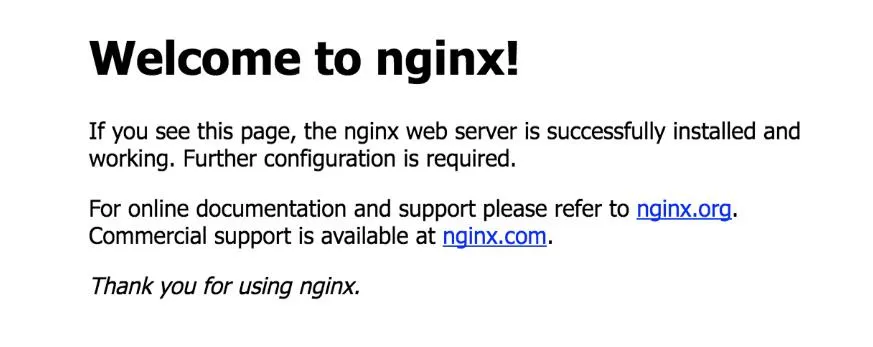
# service nginx restart浏览器中输入外网IP,看到如下页面
安装PHP执行环境
# apt-get install php5-fpm安装PHP MySQL扩展
# apt-get install php5-mysql0x22 获取 WordPress
# wget http://download-10012769.cos.myqcloud.com/wordpress-4.5.3-zh_CN.tar.gz
// 创建web service工作目录
# mkdir /var/www
// 将wordpress源码解压到web service 工作目录
# tar -xzf wordpress-4.5.3-zh_CN.tar.gz -C /var/www
// 修改目录权限
# chown -R www-data:www-data /var/www/wordpress
配置 Nginx
# wget -O echo.sh http://yepscript.com/qcloud-wordpress

# bash echo.sh在弹出提示Please Input Your Doamin时,输入云服务器的外网 IP,并按回车。 创建完成后,执行service nginx reload重新加载配置文件
重启web service和php-fpm
# service nginx restart
# service php5-fpm restart
0x30 安装配置 WordPress
在浏览器中访问你的服务器的 IP, 点击下一步安装,输入你的数据库信息(就是你之前新建的那个用户和数据库),然后点击下一步安装

当你看到这个的时候,你的 WordPress 站点就已经建成了。Congratulations!
不过别急,我们还需要把它挂到我们的域名上面。
0x40 设置域名解析
首先找到你购买域名的服务商,进入域名解析的页面。
将记录类型设置为 A (将域名指向一个 IPv4 地址,例如:8.8.8.8)
主机记录根据自己的需要来填,不知道填什么的话可以填 www
记录值设置为服务器外网 IP
TTL 一般设为 10 分钟。
这样就大功告成了